
Brush is used to draw freely on the chart.
To use Brush, click its name or the icon on the Drawings Panel. Draw a line, make annotations or mark important elements on the chart. Turn on Drawing mode to draw continuously.
Note: To cancel drawing, press ESC
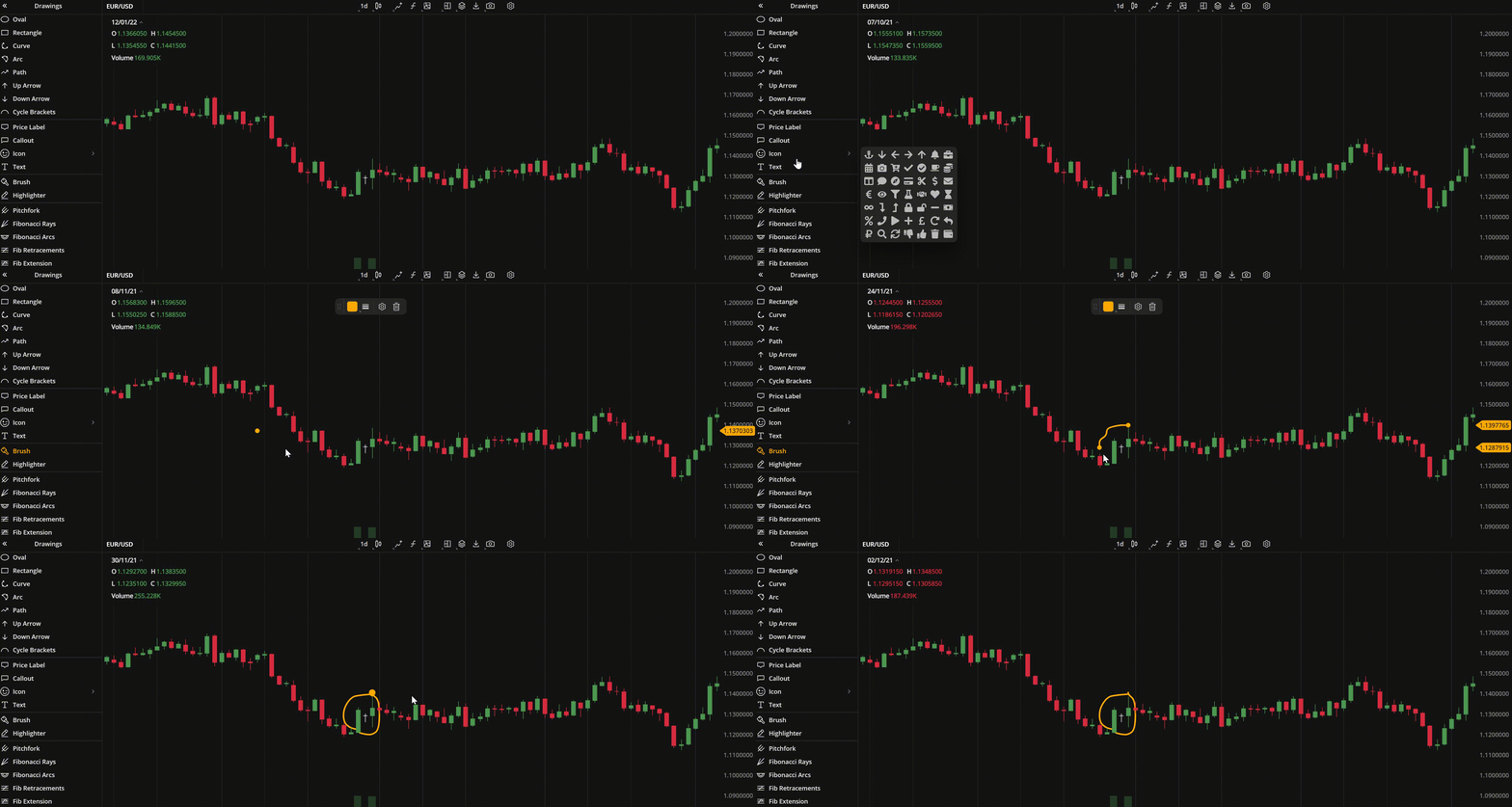 Brush
Actions with the Brush line
- To move the line, simply drag it to where you want it on the chart.
Note: To open the settings window, double-click the line on the chart
Brush Toolbar
| Color. In the Color section, you can change the color of the line. The slider at the bottom is intended to set transparency of the color. To create a custom color:
The custom-created colors are added to your palette. To remove a custom color, drag it out of the palette. |
| Weight. In the Weight section, you can set the thickness and style for the line (currently, only dashed style is available). |
| Settings. A set of parameters that are described in Brush Settings. |
| Lock. Locks the drawing position. The figure cannot be moved or edited on the chart. |
| Delete. Removes the line from the chart. |
 to open the color picker
Note: To delete a line, you can also press the Delete or Backspace button on your keyboard
Brush Settings
- Style. In this section, you can set color, style or background color of the line.
- Show arrow. Here, you can choose whether to show an arrow at the start or end points of the line or not.
Click Close to apply the settings.
Note: At the bottom-left corner of the window, click Restore Defaults to reset the settings