
Overview
DXcharts is commited to improving the accessibility as outlined in the Web Content Accessibilty Guidelines (WCAG). That means that DXcharts' users can interact with most of the chart elements directly from the keyboard eliminating the need for a mouse.
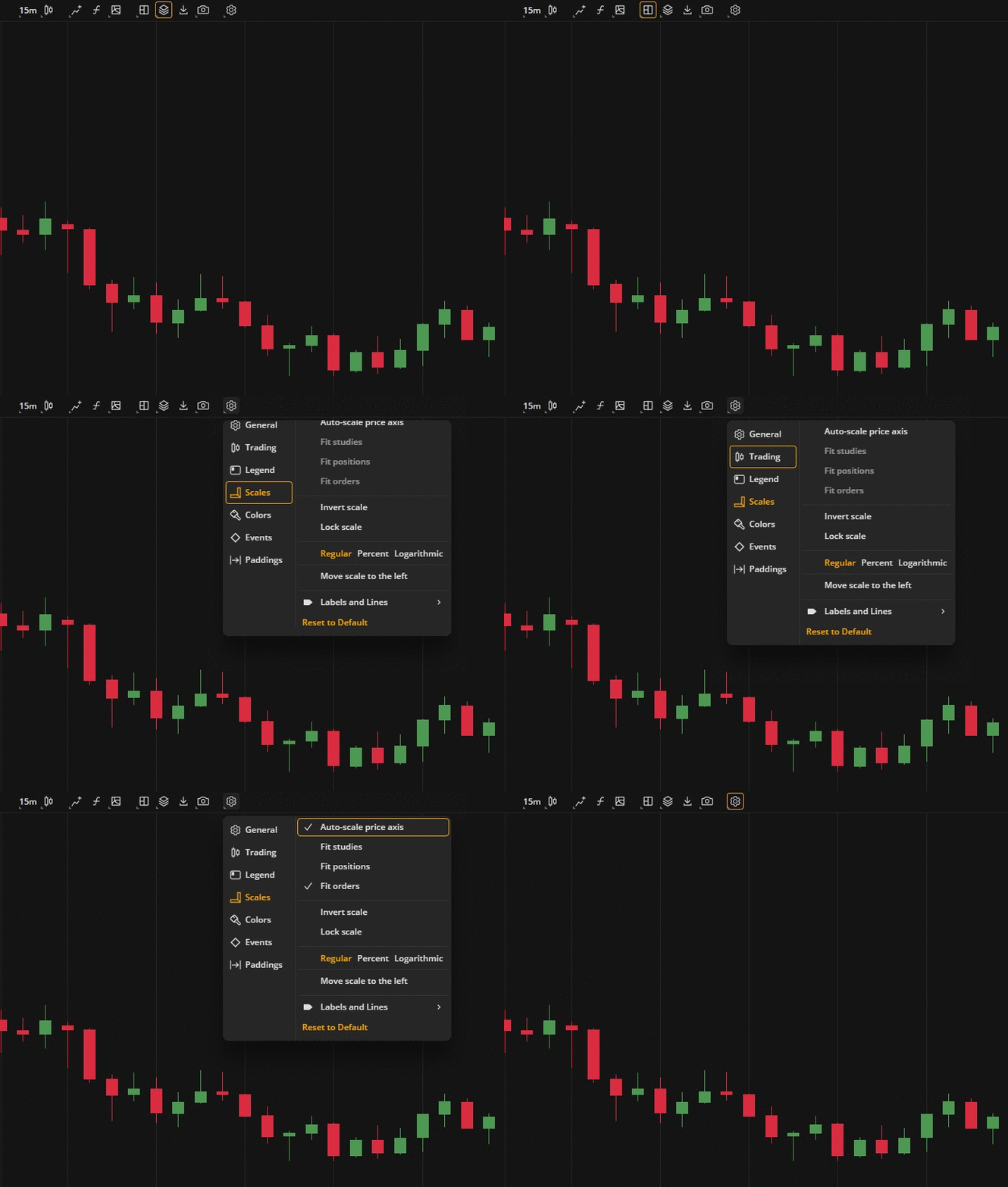
Navigating toolbar
Keyboard-accessible actions
This is the list of actions that you can perform by using the keyboard only:
Switch between instruments
Change aggregation periods
Switch between chart types
Place orders and update positions
Add, edit, and remove indicators
Change settings
Apply drawings and change their settings
Move drawings
Save, create, and remove indicator templates
Switch between chart layouts
Take screenshots
Zoom in/out
Activate magnet mode from drawing mode
The following keys and key combinations are available on the charts:
№ | Windows | MacOS | Description |
|---|---|---|---|
Navigation | |||
1 | TAB | TAB | Go to the next element |
2 | LShift + TAB | LShift + TAB | Go to the previous element |
3 | Arrow Up | Arrow Up | Move up / Expand |
4 | Arrow Down | Arrow Down | Move down / Expand |
5 | Arrow Left | Arrow Left | Move left |
6 | Arrow Right | Arrow Right | Move right |
7 | Enter/Space | Return/Space | Activate the selected item |
8 | ESC | ESC | Cancel/Exit |
9 | Hold Ctrl | Hold Command (⌘) | Activate magnet mode from drawing mode |
Actions | |||
10 | Ctrl + Z | Command (⌘) + Z | Undo the last action on the chart |
11 | Ctrl + Shift + Z | Command (⌘) + Shift + Z | Redo the last action on the chart |
12 | Ctrl + C | Command (⌘) + C | Copy the selected element |
13 | Ctrl + X | Command (⌘) + X | Cut the selected element |
14 | Ctrl + V | Command (⌘) + V | Paste the copied or cut element |
15 | Ctrl + E | Command (⌘) + E | Rename indicator template, layout |
16 | Ctrl + R | Command (⌘) + R | Edit custom indicator (dxScript) |
17 | Delete/Backspace | Delete | Remove drawing, timeframe, indicator template, layout, custom indicator (dxScript) |
18 | Hold Shift | Hold Shift | Set up angle (for applicable drawings) |
19 | Alt + R | Option + R | Reset / refresh chart |
20 | Arrow Up | Arrow Up | Move drawing 1 bar up |
21 | Arrow Down | Arrow Down | Move drawing 1 bar down |
22 | Arrow Left | Arrow Left | Move drawing by 1 minimum price increment left |
23 | Arrow Right | Arrow Right | Move drawing by 1 minimum price increment right |