
Overview
The Multiple scales feature allows you to assign indicators to individual Y-axis scales, separating them from the main Y-axis. You can add indicators to a separate scale, move them between panes, and adjust scales settings through the right-click menu. These settings are saved in indicator templates, layouts, and synchronized across multichart layouts. Each scale can have its own logarithmic or percentage-based display, which you can configure in the Y-axis context menu. Developers can also manage scales using the external API.
How to add an indicator to a separate scale
- Right-click an indicator on the chart.
- Select Pin to.
- Choose an option:
- New scale on right
- New scale on left
- Pin to existing scale (A, B, etc.)
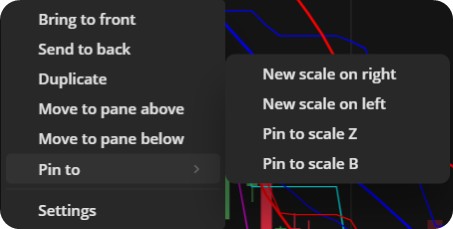 Right-click menu to pin indicators to scales
How to move an indicator between panes
- Right-click an indicator on the chart.
- Choose an option:
- Move to pane above
- Move to pane below
Note: If the target pane is the main chart, the indicator is added based on its settings—either to an existing scale or a new one.
The following options for managing scales are also available:
- Right-click menu per scale: Each Y-axis scale has an independent right-click menu. Adjustments made to one scale do not affect others.
- Auto-scale per axis: Selecting Auto-scale on a specific Y-axis adjusts only that scale to fit its corresponding indicator.
Note: Scale configurations, including pinned indicators, are saved and applied when templates are loaded.